By the end of this session, you will be able to:
analogRead() function to read analog sensor values on an Arduino.Most physical phenomena we want to measure are analog in nature. This means their values are continuous and can take any value within a given range.
These are not just simple ON/OFF or 1/0 values.
Microcontrollers, like the ATmega328P on the Arduino Uno, operate in a digital world.
The Challenge: How can a digital microcontroller understand the analog real world?
An ADC is a crucial component that translates a continuous analog voltage into a discrete digital number that the microcontroller can process.
Analog Signal (e.g., Voltage) → ADC → Digital Value (e.g., 0-1023)
Think of it as a translator between two different languages: the language of the physical world and the language of the computer.
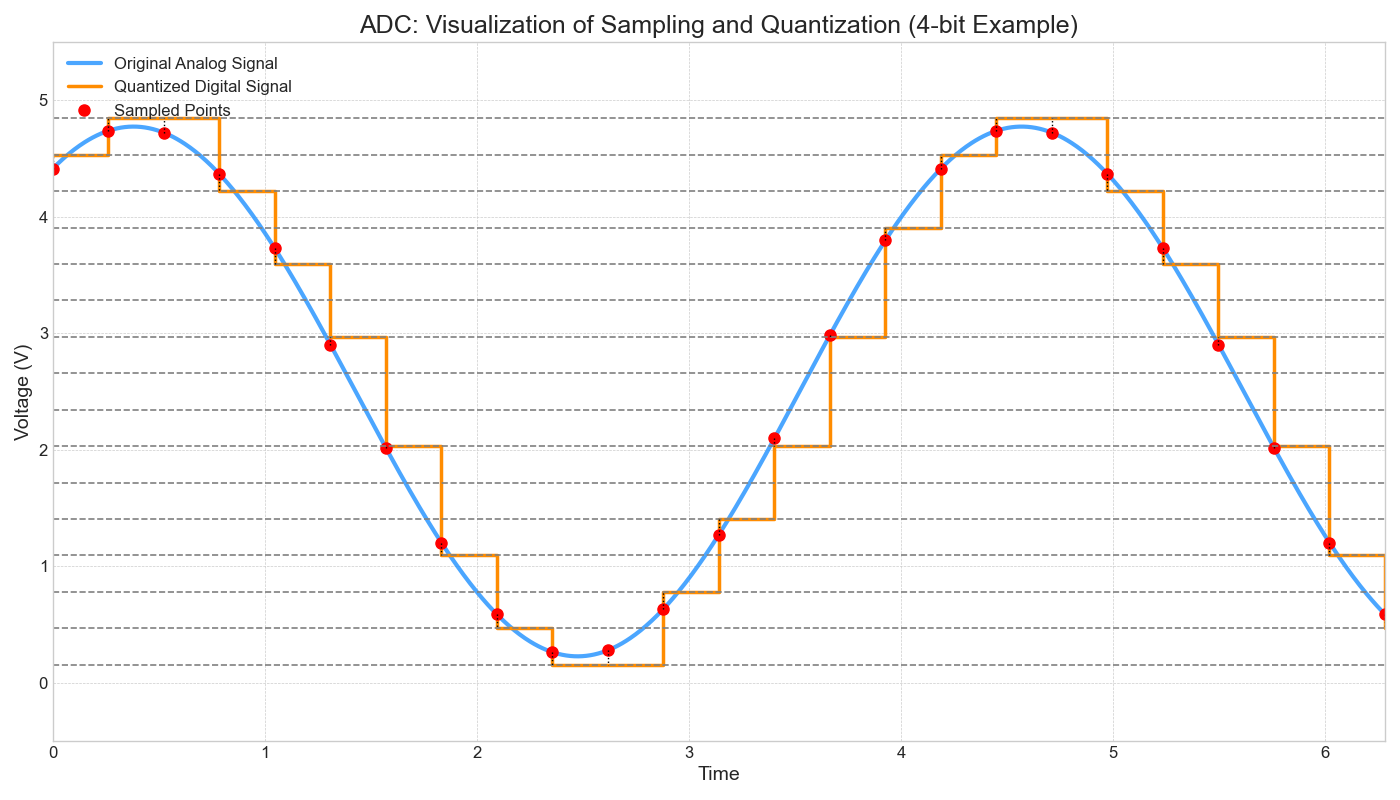
The conversion process involves two main steps:
The result is a sequence of digital numbers that approximates the original analog signal.
Imagine measuring a smooth curve (analog signal) but only being able to use a staircase (digital steps) to represent it.
Resolution determines the number of discrete steps the ADC can use to represent the analog signal. It is measured in bits (n).
Example:
The Reference Voltage (Vref) is the maximum voltage that the ADC can measure.
On a standard Arduino Uno, the default Vref is 5V.
The ADC maps the input analog voltage (Vin) to a digital value based on Vref and its resolution (n).
The key relationship is:
Digital Value = (Vin / Vref) × (2n - 1)
For an Arduino Uno (10-bit ADC, 5V Vref):
Digital Value = (Vin / 5.0) × 1023
Let's say an analog sensor outputs 2.5V. What digital value will the Arduino's 10-bit ADC produce with a 5V reference?
Digital Value = (2.5 / 5.0) * 1023
Digital Value = 0.5 * 1023
Digital Value = 511.5
Since the digital value must be an integer, it will be rounded to 511 or 512 (typically truncated to 511).
Many common sensors produce an analog voltage output that can be read by an ADC:
Arduino makes reading analog values incredibly simple with a built-in function.
Syntax:
analogRead(pin)
// Read the value from analog pin A0
int sensorValue = analogRead(A0);
// Print the value to the serial monitor
Serial.println(sensorValue);
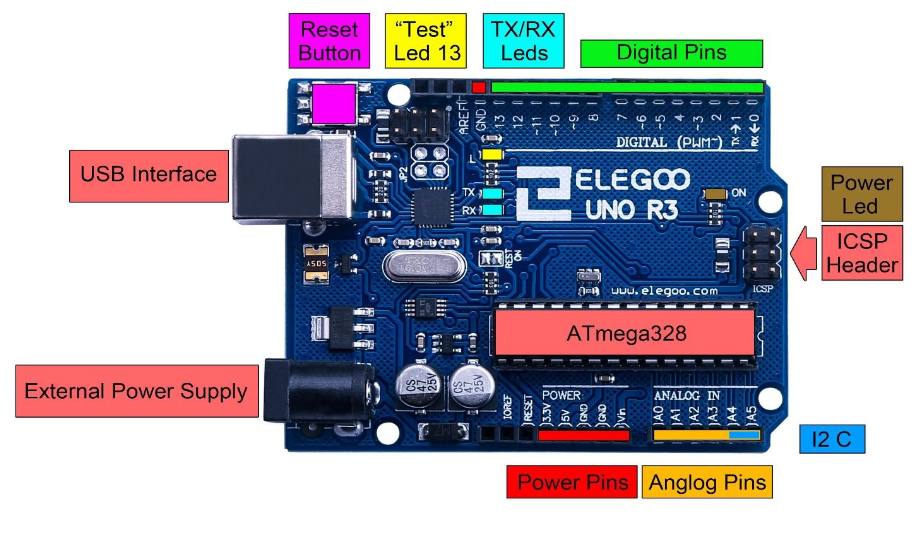
The Arduino Uno has dedicated pins for analog input. These are connected to the microcontroller's internal ADC.
A potentiometer (or 'pot') is a perfect first analog sensor. It's a variable resistor that acts as an adjustable voltage divider.
Objective: Read the position of a potentiometer knob and display its corresponding digital value (0-1023) on the computer.
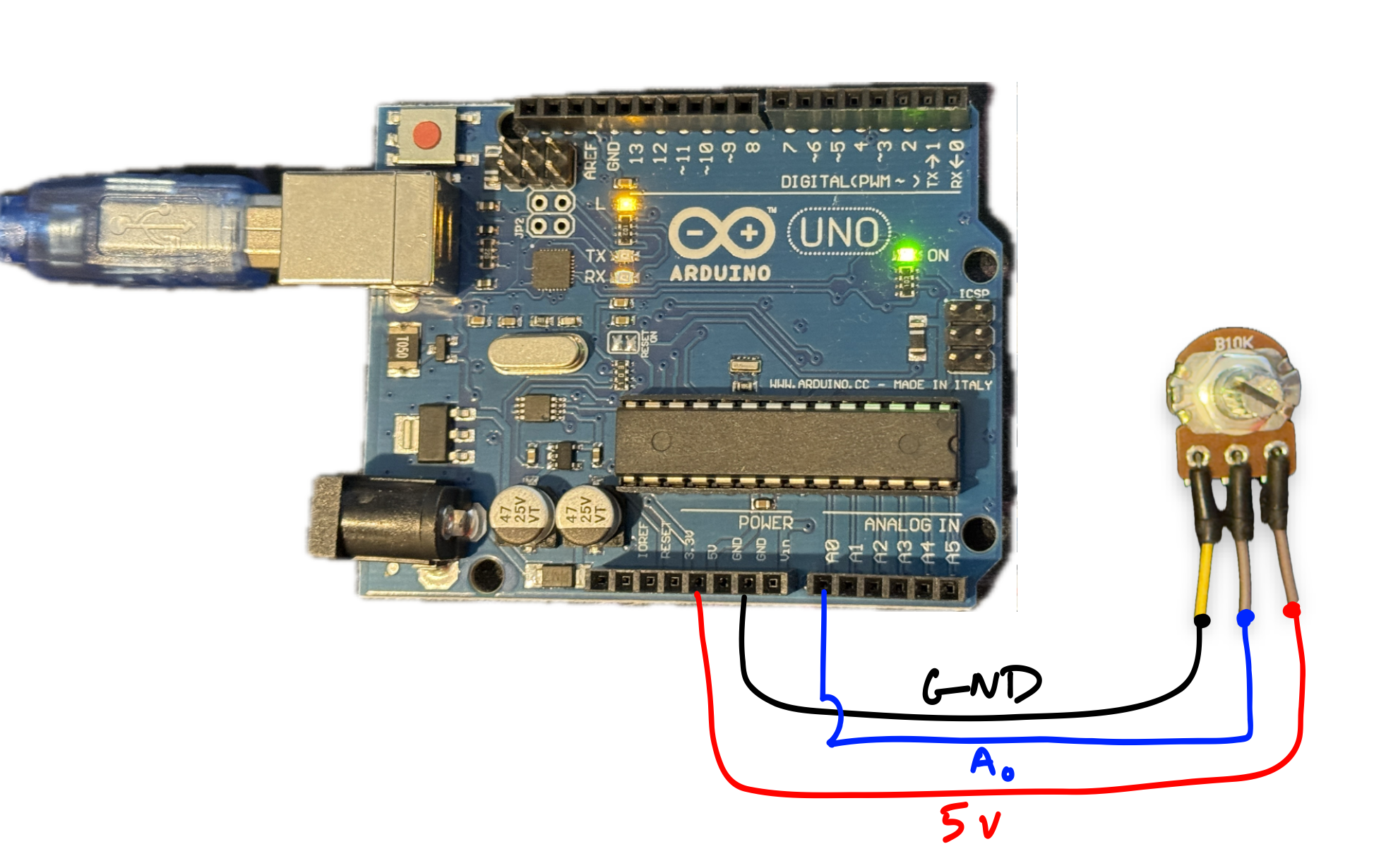
Components needed:
A potentiometer has three pins:
Turning the knob moves the wiper, changing the voltage on pin A0 from 0V to 5V.
This code will continuously read the voltage from pin A0 and print the resulting digital value to the Serial Monitor.
The `setup()` function initializes serial communication. The `loop()` function reads the pin and prints the value every 100 milliseconds.
void setup() {
// Initialize serial communication at 9600 baud
Serial.begin(9600);
}
void loop() {
// Read the analog value from pin A0
int potValue = analogRead(A0);
// Print the value to the Serial Monitor
Serial.println(potValue);
// Wait for 100ms before the next reading
delay(100);
}
After uploading the code, you can see the raw data from the potentiometer.
As you turn the potentiometer knob, you will see a stream of numbers changing from 0 to 1023.
Reading numbers is useful, but a graph is often better. The Arduino IDE has a built-in tool for this.
A new window will open, showing a real-time graph of the values being sent by the Arduino.
Turn the potentiometer knob and watch the line on the graph move up and down between 0 and 1023. This is a powerful and easy way to visualize analog sensor data!
An analog joystick is like two potentiometers in one package, plus a push-button.
Objective: Read the X and Y positions of a joystick and display their values.
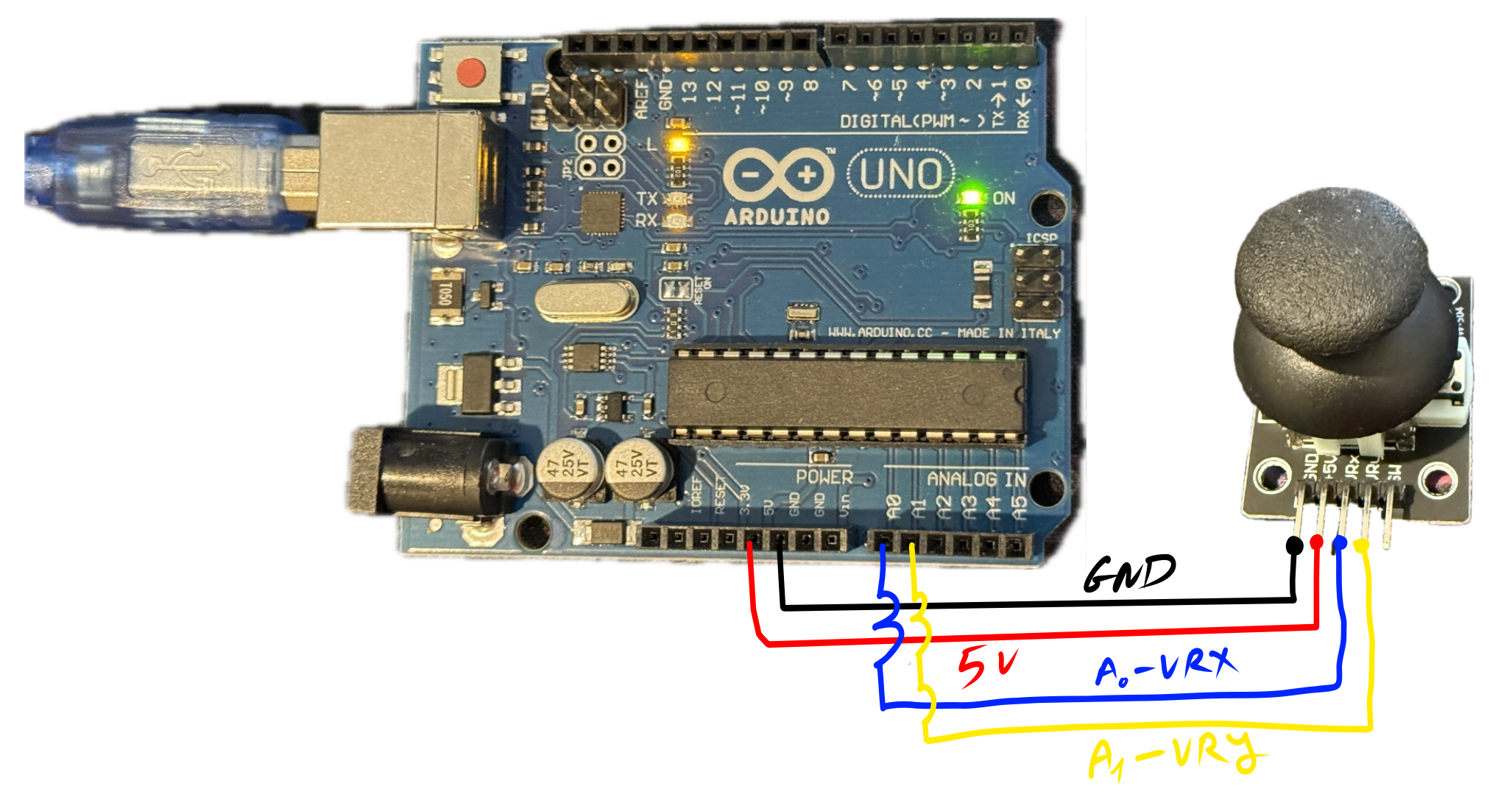
Most joystick modules have 5 pins:
This code reads both analog pins A0 (X-axis) and A1 (Y-axis) and prints them to the serial monitor in a comma-separated format.
When the joystick is centered, both values should be near the middle of the range (~512).
void setup() {
Serial.begin(9600);
}
void loop() {
// Read the X and Y axis values
int xValue = analogRead(A0);
int yValue = analogRead(A1);
// Print the values
Serial.print("X: ");
Serial.print(xValue);
Serial.print(", Y: ");
Serial.println(yValue);
delay(100);
}
To plot both X and Y values simultaneously on the Serial Plotter, we need to format the output correctly.
The plotter will draw a separate line for each value if they are separated by a space or a comma.
Let's modify the `println` statements.
// ... inside loop() ...
int xValue = analogRead(A0);
int yValue = analogRead(A1);
// Print X, then a comma, then Y
Serial.print(xValue);
Serial.print(",");
Serial.println(yValue);
delay(100);
The Arduino Serial Plotter is great for quick checks, but it's limited. What if we want more control?
We can achieve this by sending the serial data from the Arduino to a Python script on our computer for processing and visualization.
We need two main Python libraries:
You can install them using pip:
pip install pyserial
pip install matplotlib
Our Python script needs data in a consistent, easy-to-parse format. A comma-separated string followed by a newline character is ideal.
The previous joystick code is already perfect for this.
void loop() {
int xValue = analogRead(A0);
int yValue = analogRead(A1);
// Send "x_val,y_val"
Serial.print(xValue);
Serial.print(",");
Serial.println(yValue);
delay(50); // A shorter delay for smoother plotting
}
First, we import the `serial` library and create a serial object. You must specify the correct port name (e.g., 'COM3' on Windows, '/dev/ttyACM0' on Linux) and the baud rate (9600).
The code reads one line of data, decodes it from bytes to a string, and removes any whitespace.
import serial
# NOTE: Change 'COM3' to your Arduino's port
arduino_port = 'COM3'
baud_rate = 9600
# Connect to the serial port
ser = serial.Serial(arduino_port, baud_rate)
print(f"Connected to {arduino_port}")
# Read and print one line
line = ser.readline().decode('utf-8').strip()
print(line)
Once we have the string (e.g., "512,480"), we need to split it at the comma and convert the two parts into numbers (integers).
A `try-except` block is good practice to handle potential errors if the data is not in the expected format.
line = "512,480" # Example line
try:
# Split the string by the comma
parts = line.split(',')
# Convert parts to integers
x_val = int(parts[0])
y_val = int(parts[1])
print(f"X: {x_val}, Y: {y_val}")
except (ValueError, IndexError):
# Handle cases where data is incomplete
print("Could not parse data:", line)
We'll create a 2D scatter plot to show the joystick's position. The X value from the joystick will be the plot's x-coordinate, and the Y value will be the y-coordinate.
We use `plt.ion()` for interactive mode, allowing the plot to update in real-time.
import matplotlib.pyplot as plt
# Enable interactive mode
plt.ion()
# Create a figure and axis for the plot
fig, ax = plt.subplots()
ax.set_xlim(0, 1023) # Set axis limits
ax.set_ylim(0, 1023)
ax.set_title("Real-time Joystick Position")
ax.set_xlabel("X-axis")
ax.set_ylabel("Y-axis")
# Plot a single point
point, = ax.plot(512, 512, 'ro') # 'ro' = red circle
Now we combine everything into a loop that continuously:
This loop runs until you stop the script (e.g., with Ctrl+C).
import serial
import matplotlib.pyplot as plt
import time
# --- Setup Serial Connection ---
# NOTE: Change 'COM3' to your Arduino's port
try:
ser = serial.Serial('COM3', 9600, timeout=1)
except serial.SerialException as e:
print(f"Error opening serial port: {e}")
exit()
time.sleep(2) # Wait for connection to establish
# --- Setup Matplotlib Plot ---
plt.ion()
fig, ax = plt.subplots()
point, = ax.plot(512, 512, marker='o', linestyle='none', color='r')
ax.set_title("Real-time Joystick Position")
ax.set_xlim(0, 1023)
ax.set_ylim(0, 1023)
ax.grid(True)
# --- Main Loop ---
try:
while True:
if ser.in_waiting > 0:
line = ser.readline().decode('utf-8').strip()
try:
x_val_str, y_val_str = line.split(',')
x_val = int(x_val_str)
y_val = int(y_val_str)
# Update plot data
point.set_data(x_val, y_val)
fig.canvas.draw()
fig.canvas.flush_events()
except (ValueError, IndexError):
print(f"Could not parse: {line}")
except KeyboardInterrupt:
print("Plotting stopped by user.")
finally:
ser.close()
analogRead(pin) function makes it easy to get a digital value (0-1023).pyserial and matplotlib offers powerful, customizable, real-time data plotting.